Demonstrate a feature
Make the behavior inspectable
Section titled “Make the behavior inspectable”A good feature page answers six questions:
- Use case: what task does the setup make possible?
- Source: which installer, package declaration, or managed configuration owns it?
- Example: what exact command or interaction demonstrates it, with which prerequisites?
- Observation: what should the reader see, and what was actually observed?
- Limits: which services, accounts, hardware, or host checks remain outside the evidence?
- References: where are the upstream manual and the local source of truth?
Update the guide and docs/_data/features.json with the implementation. The repository instructions and PR template make those updates part of finishing a change. The docs gate catches missing routes, source links, and executable mappings; review still needs to assess whether the explanation and demonstration are useful.
Example: a browser feature
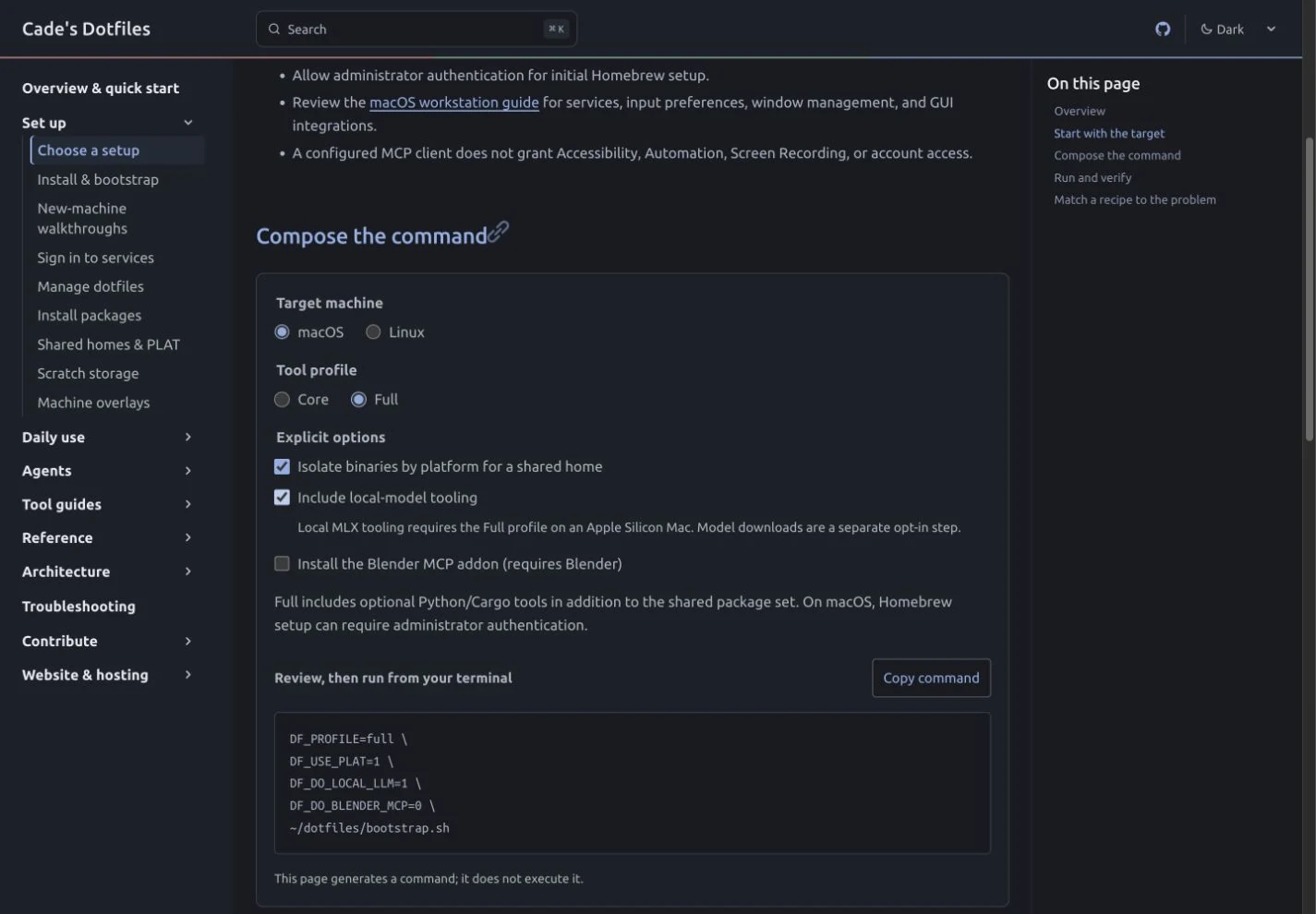
Section titled “Example: a browser feature”The setup configurator turns explicit choices into a reviewable shell command. It runs entirely in the browser; no installer is invoked by this page.
- Open the configurator on its default Core profile. Confirm local-model tooling is disabled.
- Select macOS → Full, enable shared-home isolation and local-model tooling.
- Confirm the command contains
DF_PROFILE=full,DF_USE_PLAT=1, andDF_DO_LOCAL_LLM=1. Use Copy command and check its feedback. - Select Linux. Confirm local-model tooling becomes unchecked and disabled, and the command changes to
DF_DO_LOCAL_LLM=0.
Search and narrow-screen evidence
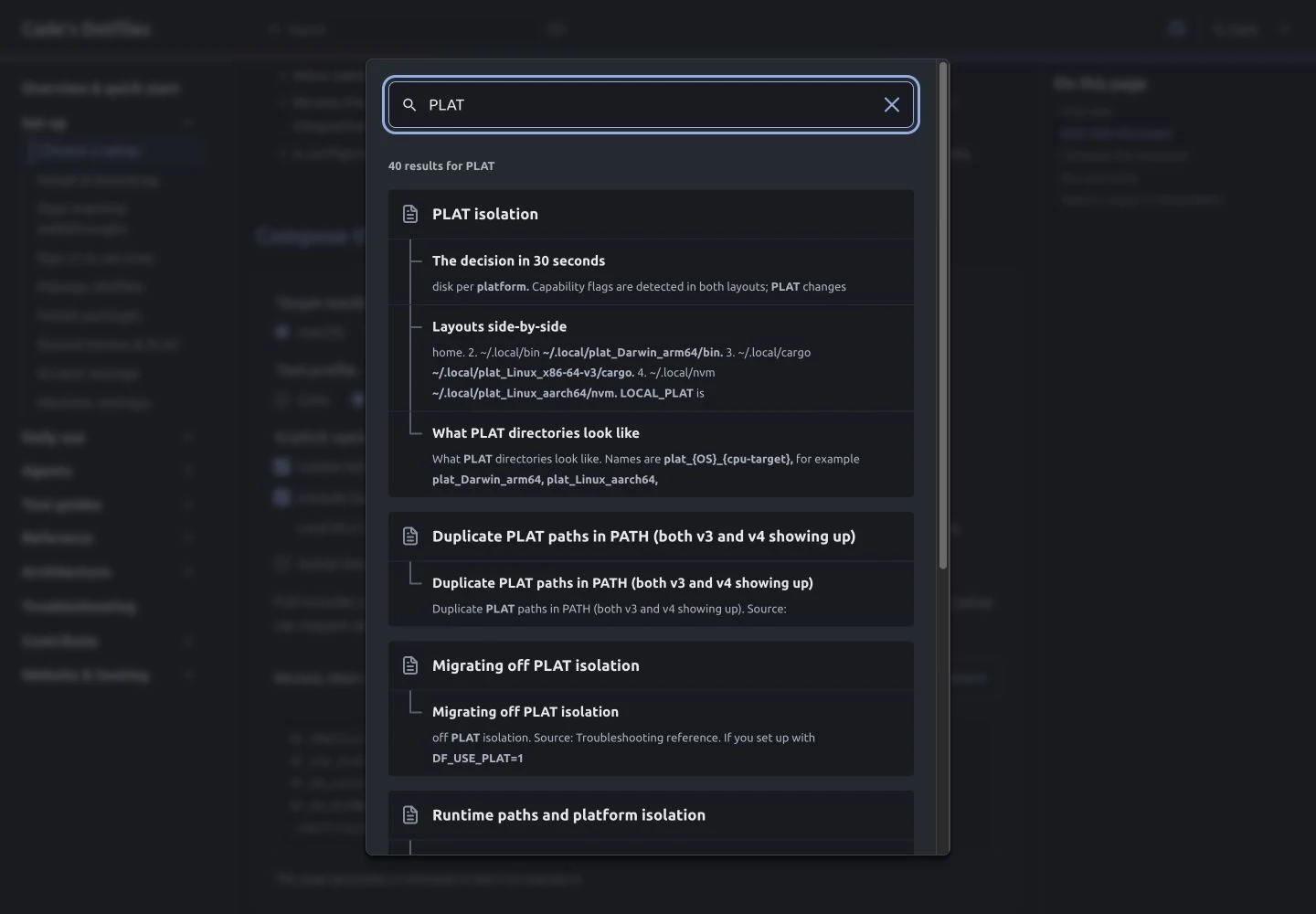
Section titled “Search and narrow-screen evidence”Searching for PLAT returned the isolation guide, runtime architecture, and individual troubleshooting diagnoses. Search is built with the handbook and served locally.
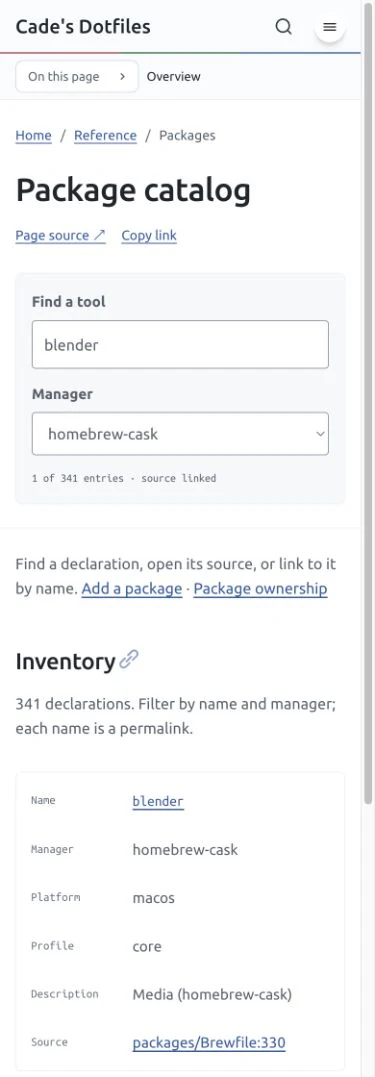
Filtering the package catalog for blender and homebrew-cask produced one matching declaration. An unmatched query produced an explicit empty state. At a 390-pixel browser viewport, the measured document width and scroll width were both 375 pixels after the scrollbar: no horizontal overflow.
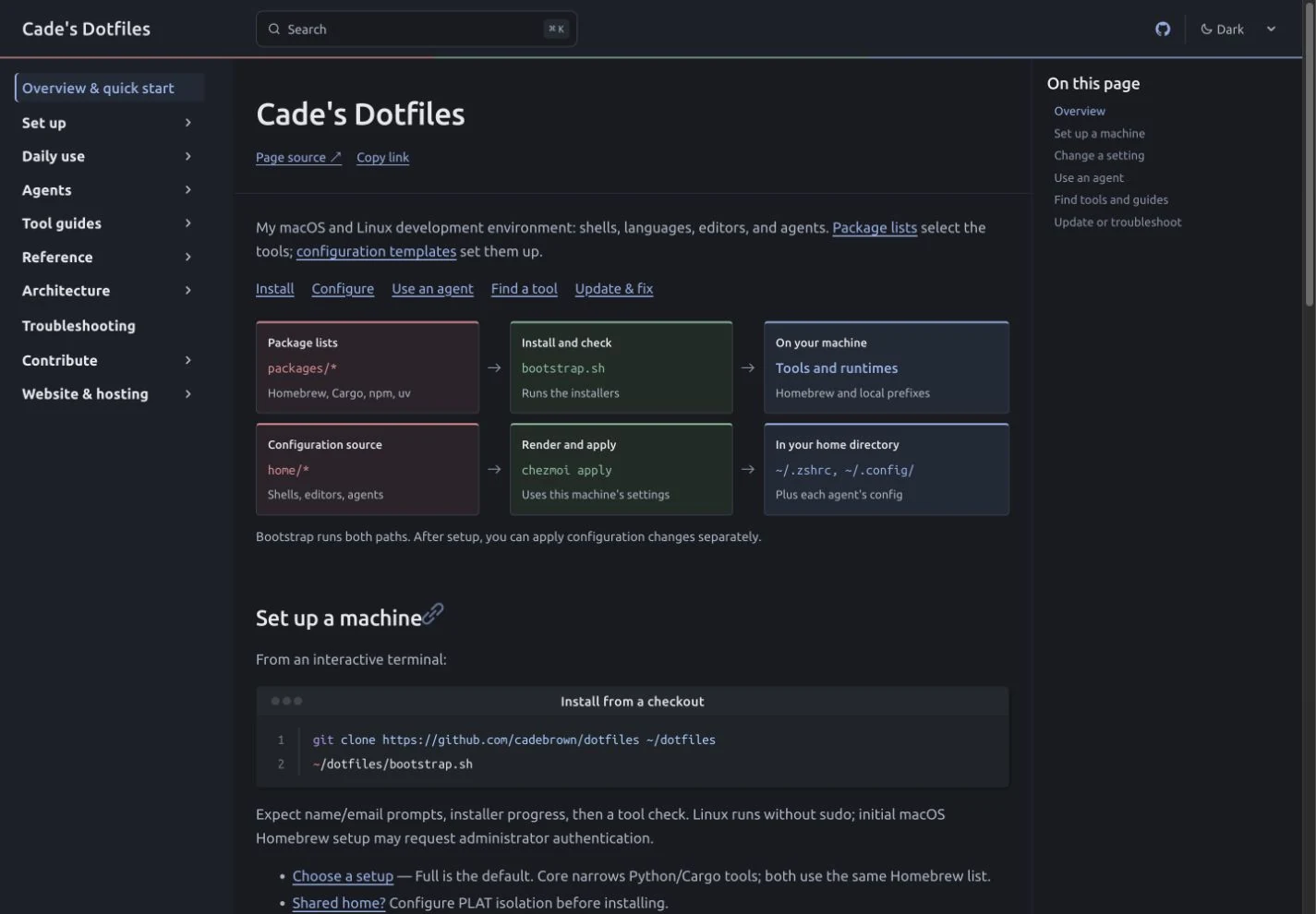
The homepage shows how package lists and configuration reach a machine. It then walks through installation, a configuration edit, and a read-only agent session, with commands and expected results.
Show configuration with context
Section titled “Show configuration with context”Name the file, highlight the setting that matters, and explain the effect. This excerpt from Ghostty’s managed source makes the clipboard policy visible:
# Local selection and remote OSC 52 writes may update the clipboard.copy-on-select = clipboardclipboard-write = allowclipboard-read = askFor longer examples, collapse supporting lines and keep the changed behavior visible. The block below is an example evidence record, not a report of an actual Ghostty test:
{5 collapsed lines
"feature": "terminal-clipboard", "source": "home/dot_config/ghostty/config", "environment": "record OS, architecture, and app versions", "command": "record the exact command or interaction", "capturedAt": "record the UTC timestamp", "expected": "remote copy updates the local clipboard", "observed": "record the actual result after testing", "artifact": "record a relative artifact path", "limitations": "record what this test did not establish"}Title, line-number, marker, and collapse syntax comes from Expressive Code. Copying a code block keeps its underlying text; annotations are presentation.
Choose the right evidence
Section titled “Choose the right evidence”| Change | Useful demonstration | Additional boundary |
|---|---|---|
| Shell/PATH configuration | Fresh login shell, resolved executable, representative command | Existing terminals retain old environment |
| Agent instruction or skill | Representative task plus resulting artifact and checks | One success does not establish general model quality |
| MCP integration | Discover tool, invoke bounded operation, verify result | Declaration alone does not prove auth or permission |
| Browser/desktop workflow | Before/after interaction, focused screenshot, reopen result | Build success does not prove UI behavior |
| Game/media pipeline | Render, play, import, or reopen the editable artifact | Emulator/host output may differ from target hardware |
| Performance change | Repeated samples, environment, command, raw values | Separate cold/warm runs and measured scope |
Media budget and reproduction
Section titled “Media budget and reproduction”Keep diagrams as accessible SVG. For screenshots, capture the actual interface, choose a focused viewport or crop, encode as WebP/AVIF, and inspect the encoded image. Do not manufacture a UI screenshot to stand in for a real test.
cd sitenode scripts/encode-media.mjs artifacts/capture.png public/media/feature.webpThe encoder limits width to 1600 pixels without upscaling, uses WebP quality 88, and rejects an image over 350 KiB. Add its dimensions, description, route, capture conditions, and hash to media.json. The published examples here total roughly 213 KiB across four screenshots; individual pages load their own images lazily.
Use performance measurements for reproducible build data, and the documentation authoring guide for the canonical validation loop.